Tags
What it does
A tag is a short coloured label — "Best Seller", "New", "Spicy" — that staff attach to menu items so customers (and the counter) can spot them at a glance. Staff manage tags from a Tags screen in the POS sidebar, right next to Categories: create a tag, give it a name, pick one of eight colours (red, orange, yellow, green, blue, purple, pink, gray), set a sort order, and choose whether it should show as a section on the order app.
Tags are applied from the tag's side. Open a tag's row menu, choose Assign products, and tick the products it belongs to — grouped by category, searchable by name, saved with one button. A product with several variants expands into a checklist, so a tag can sit on the whole product or on a single variant:
| Menu item | What staff tick | What it means |
|---|---|---|
| Coffee Latte (Hot, Iced) | the product | Both temperatures are a best seller; one card in the "Best Seller" section. |
| Pancong (Choco, Matcha, Vanilla, Ice Cream) | only the Ice Cream variant | Just that flavour is new; the "New" section shows a Pancong · Ice Cream card with its own photo and price. Pancong itself is not badged "New". |
| Salted Caramel Macchiato (one variant) | the product | The product is new. The single variant is never shown — nobody has to think about it. |
A variant can also be tagged straight from its own form, and the variant form has an optional Image URL so a highlighted variant can show its own photo instead of the product's.
Why it matters
The shop regularly has items it wants customers to notice first — a new Pancong topping, a seasonal drink, the coffee that sells the most. Before tags there was nowhere to say so: the order-app menu was category-only, and neither the counter nor the customer could tell a new item from an old one.
Tags put that recommendation exactly where customers already look. A customer scanning the table QR code sees "New" and "Best Seller" strips above the regular menu, and the same badges on every card — without staff maintaining a second menu. Because a tag is a label rather than a copy of an item, removing "New" next month is one untick on the assignment screen, and nothing else in the catalog changes.
Screenshot
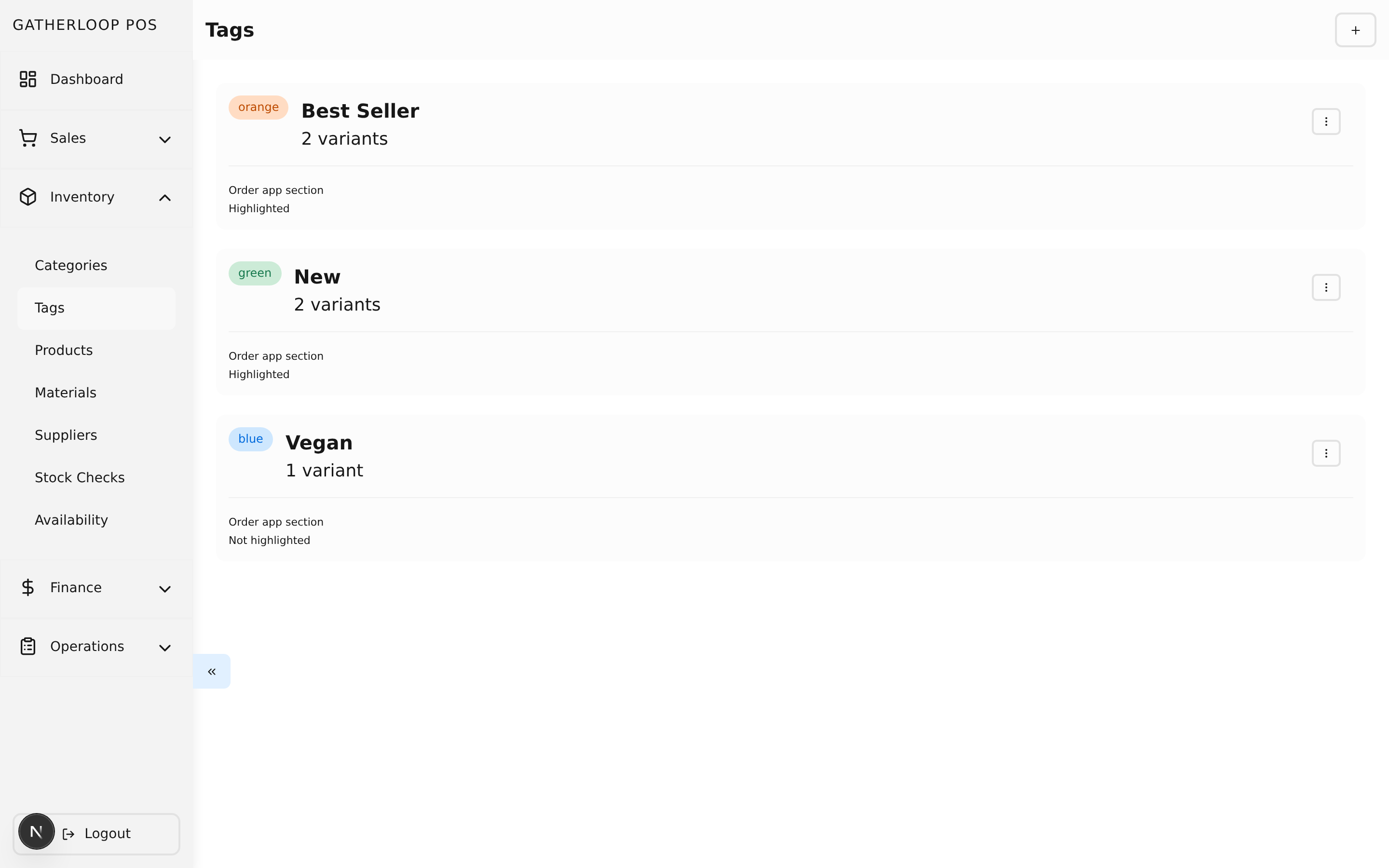
Key capabilities
- Small managed list — create a tag once, reuse it on as many items as needed. Names are unique ignoring case; deleting a tag asks for confirmation, states how many variants carry it, and removes its assignments with it.
- Product or single variant — a tag applies to a whole product when every variant carries it, otherwise to the specific variants that do. A variant added later to a tagged product starts untagged, and the variant form pre-fills the product's current tags so staff make that call in the same screen.
- Badges on cards, in both apps — at most two coloured pills per card, then
+N. A variant-level tag names the variant (New · Ice Cream). They show on POS product cards, including the picker used when ringing up a transaction, and on order-app menu cards and the item detail sheet. - Highlight sections on the order app — a tag marked Show as section on order app gets its own horizontal strip above the categories, ordered by the tag's sort order. Entries are newest-tagged first, and only items that can currently be ordered appear; a section with nothing to sell is hidden. Items still appear under their own category as well — sections duplicate, never move.
- Variant cards pre-select their option — tapping Pancong · Ice Cream opens the item with Ice Cream already chosen; the customer can still switch topping.
- Tag chips filter the menu — each non-empty highlighted tag also becomes a coloured chip after Semua and before the categories. Tapping it shows only that tag's items as a vertical list; it and the category chips are mutually exclusive, and Semua clears both. Sections are hidden while searching or filtering.
- Merchandising only — tags are not copied onto transactions, receipts, kitchen tickets or statistics, so changing them never rewrites history.
For engineers
- Screens:
libs/ui/src/presentation/views/screens/pos/TagListScreen.tsx,TagCreateScreen.tsx,TagUpdateScreen.tsx,TagAssignmentScreen.tsx; components inlibs/ui/src/presentation/views/components/tags/(TagFormView,TagAssignmentList,TagBadge,ProductTagBadges) - Order app:
MenuHighlightSection,MenuHighlightCardandCategoryChipListinlibs/ui/src/presentation/views/components/menu/; sections and chip filtering are built bybuildTagHighlightsinlibs/ui/src/utils/insideMenuListHandler, withselectedTagIdheld inMenuListUsecase - Entities:
libs/ui/src/domain/entities/Tag.ts; backendapps/api/domain/tag_entity.go—ResolveProductTagsderives product scope from variant assignments on every product read, and thevariant_tagstable is the single source of truth - API:
/tagsCRUD andPUT /tags/{tagId}/variants(replaces one tag's assignments, diffing so untouched rows keep their original tag time); tags ride on the existing/public/productsand/public/variantsresponses, so the order app needs no new endpoint - End-to-end coverage:
apps/pos-web-e2e/src/tags.spec.tsandapps/order-web-e2e/src/tags.spec.ts - Design:
docs/prd-product-tags.md(decisions D1–D18 and the phased plan)